Last updated October 2026. Roblox's publishing flow changes from time to time — check the linked Roblox docs for the latest.
You made a great emote. The motion looks perfect on your R15 rig, you hit upload, you fill out the title and description, you save it... and then it shows up in your Creator Hub under Development Items, never under Avatar Items. So there's no "publish to the Marketplace" button, no upload fee prompt, nothing. Dead end.
If that's exactly where you're stuck, good news: you didn't break anything. You're just missing the one step almost every tutorial skips.
This guide walks through why your animation gets stranded in Development Items, and the exact sequence that gets it published as a real, sellable avatar emote.
Why your animation gets stuck in Development Items
Here's the thing nobody tells you upfront: the animation you publish and the asset Roblox actually sells are two different objects.
When you publish a raw keyframe animation straight out of the Animation Editor, Roblox saves it as a development asset — something a script can play inside an experience. That's why it lands in Development Items. It's working as designed; it's just not an avatar item, so the Marketplace path never opens.
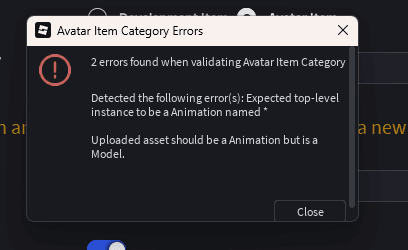
To sell an emote, Roblox needs two specific things, and missing either one keeps you stranded:
The two things Roblox actually requires
- The animation has to be a CurveAnimation, not a plain keyframe sequence. Roblox explicitly requires emote animation data to be curve-based.
- The thing you publish to the Marketplace is an Animation object that points at your animation's asset ID — published as an Avatar Item under the Emote category.
That's the whole trick. Convert to a curve animation, publish it as an emote so Studio wraps it in an Animation object, and publish that object as an Avatar Item. Let's do it.
Before you start
You'll move faster if you've got these ready:
- Your emote on an R15 rig in Roblox Studio. Emotes have to reference an R15 rig, so this is non-negotiable. If you're generating motion with NoCapMocap, every animation comes out R15-native — generate it, then drop it onto a rig with the Motion Lab plugin or use Copy for Roblox Studio and paste it in with the RBXMonkey - Blender Animations plugin. No retargeting, no FBX.
- A short emote. Marketplace emotes must be under 10 seconds, and shorter clips read better as emotes anyway. Two to five seconds is the sweet spot.
- Roblox Studio 737 or newer. Older versions don't have the emote setting you need in Step 2.
- A creator account eligible to publish to the Marketplace. Uploading needs ID verification and the 80 Robux upload fee. Selling also needs 2-Step Verification, Roblox Plus or Premium 1000/2200, and a 1,500 Robux publishing advance when you put a regular (non-Limited) emote on sale (Roblox pays it back out of its cut as copies sell; Limited emotes use different fees). If you've never published a UGC item, check Roblox's Marketplace requirements first.
However you got the animation onto your rig — the NoCapMocap plugin, Copy for Roblox Studio, or any other importer — once it's playing on an R15 character in Studio, you're ready.
Step 1: Convert your animation to a curve animation
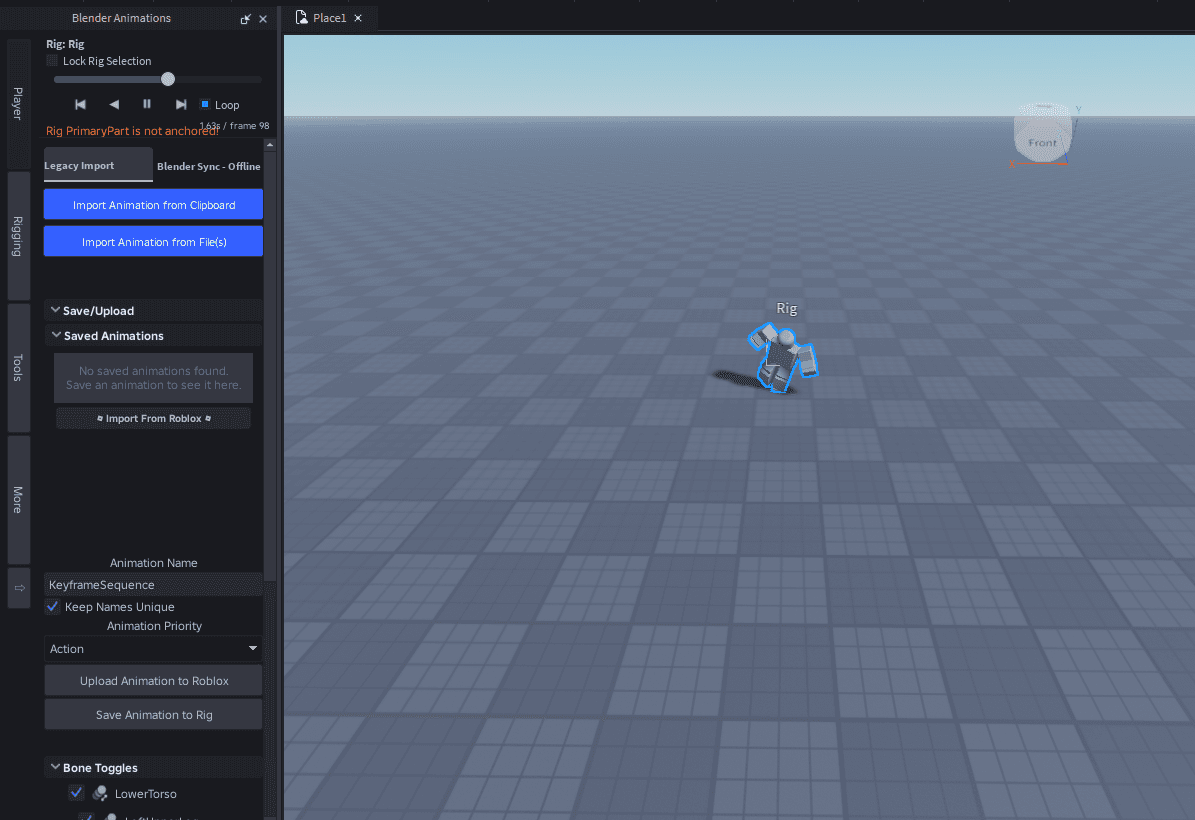
This is the step that fixes everything. Open your animation in Roblox Studio's Animation Editor (Avatar → Animation Editor), then look at the top-left corner of the timeline for the Curve Editor icon — the little curve graph button.

Before you click it, open the editor's settings (the gear in the top-right) and check that Default Rotation Type is on Euler Angles — that's the default, so leave it there. Emote validation only accepts Euler rotation curves, so a clip converted with Quaternions fails.
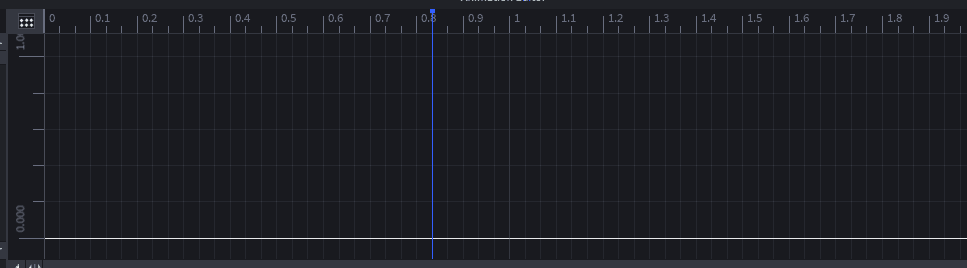
Click it. Studio pops a prompt warning that it'll convert your KeyframeSequence into a CurveAnimation. Accept it. The timeline layout changes from the standard dope sheet into the curve-based view — that visual change is the conversion working.
Convert on a copy, not your only file
Converting a keyframe sequence to a curve animation is a one-way trip — Studio turns rotations into curves (Euler-angle curves, if you kept the default) and you can't switch them back. Keep a saved copy of the original animation before you convert, so you can re-edit later if you need to.
Step 2: Publish to Roblox as an Emote
With the curve animation open, click the ⋯ (three-dot) menu in the Animation Editor and choose Publish to Roblox. Tick Create Animation Object in Workspace and set Animation Type to Emote. Give it a title and description and save. (Don't see those two options? Update Studio — you need version 737 or newer.)
After it processes, Roblox hands you an asset ID, and Studio drops a new Animation object into Workspace. And yes, this animation will show up under Development Items again. That's supposed to happen. That Animation object is the ingredient for the next step, not the final emote.
Step 3: Find the Animation object Studio made
This is the object Roblox can actually sell, and Studio already built it for you in Step 2. If the Explorer panel isn't open, open it from the Window menu or the Home tab first. Then expand Workspace and find the new Animation object (its icon looks like three little crescents).
Don't build this object by hand. Roblox's own import docs still show adding an Animation object and pasting in the asset ID yourself, but Roblox staff say that since Studio 737 you should upload the object Studio creates — creators who made it by hand got a "missing a valid UGC emote marker" error.
That Animation object is the emote. It has no mesh, no texture — just a pointer to your curve animation's asset ID. That's all an emote needs.
Step 4: Publish the Animation object as an Avatar Item
Last step, and this is the one that finally unlocks the Marketplace.
- Right-click the
Animationobject in the Explorer and choose Save to Roblox. - In the upload dialog, set Content Type to Avatar Item.
- Set Asset Category to Emote.
- Add a title and a description — the description field can't be blank — then wait for the dialog to report validation succeeded before you Submit.
This is where you'll hit the upload fee — 80 Robux since July 14, 2026, down from 750 when emotes launched — and your emote enters moderation. Once it's approved, it's a live avatar item you can sell on the Marketplace or use inside experiences — exactly the spot you couldn't reach before. To put it on sale, set a price in Creator Hub and pay the publishing advance: 1,500 Robux for a regular emote (Limited emotes use different fees).
Get it right before you submit
Roblox limits how many emotes you can upload in a given window, and those limits shift over time — creators have reported caps anywhere from one upload a day to a handful a month depending on the period and account. On top of that, a published emote can't simply be edited in place; fixing a mistake usually means burning another upload slot and another fee. So preview the motion, double-check the title and description, and make sure validation passes before you hit Submit.
Best for: Custom emotes, dances, gestures, and reactions you want to sell or share on the Roblox Marketplace.
Not great for: In-experience-only animations a script plays — those never need the curve-animation-to-emote conversion at all.
Don't get rejected on a technicality
Emotes go through an automated validation pass on upload, and a few easy-to-miss rules trip people up. Before you submit, make sure your animation:
- Is under 10 seconds.
- References an R15 rig (this is why R15-native motion saves you a headache).
- Is sourced from a CurveAnimation with Euler rotation curves — the whole reason for Step 1.
- Keeps the character's root joint near its starting position (big bodily travel gets flagged).
- Doesn't move faster than Roblox's speed cap, which exists to block teleport-style abuse.
- Follows Roblox's Marketplace and Community policies.
For the official rundown, Roblox documents the full flow in import and configure emotes and the emote specifications.
Watch it end to end
If you'd rather follow along on video, this walkthrough covers the Studio side of publishing an emote to Roblox:
Loads from YouTube, which may set its own cookies. Privacy policy
The short version
The reason your animation kept landing in Development Items was never a bug — it's that emotes need a curve animation wrapped in an Animation object, and most guides never mention it. So, start to finish:
- Get your emote onto an R15 rig in Studio.
- Convert the animation to a curve animation (Curve Editor icon, rotations on Euler Angles).
- Publish to Roblox with Create Animation Object in Workspace ticked and Animation Type set to Emote (Development Items — expected).
- Find the Animation object Studio adds to Workspace.
- Save the Animation object as an Avatar Item → Emote, pay the 80 Robux fee, and wait for moderation.
That's it. Once you've done it once, the whole thing takes about five minutes.
See what's worth publishing
Every clip below was generated as R15 motion and applied to a rig in Studio — the kind of animation that's ready for the curve-and-publish flow above.
Need ideas first? Here's how to create custom emotes for Roblox with AI, and if you're still wrangling imports, how to import Roblox animations without Blender clears that up too.
FAQ
Why does my Roblox animation only show up under Development Items?
Because you published a raw keyframe animation, which Roblox treats as a development asset — not an avatar item. To list an emote on the Marketplace you need two extra steps: convert the animation to a CurveAnimation and publish it with Animation Type set to Emote so Studio wraps it in an Animation object, then publish that object as an Avatar Item under the Emote category.
What is a curve animation and why does Roblox require it for emotes?
A CurveAnimation is Roblox's curve-based animation format, edited through the Curve Editor inside the Animation Editor. Roblox requires every Marketplace emote to be sourced from a curve animation. You convert a normal keyframe sequence by clicking the Curve Editor icon in the top-left of the timeline and accepting the prompt. Keep Default Rotation Type on Euler Angles when you do — clips converted with Quaternions fail emote validation.
How do I turn an asset ID into an emote I can publish?
On Studio 737 or newer, you don't paste it in by hand anymore. When you publish your curve animation, tick Create Animation Object in Workspace and set Animation Type to Emote, and Studio adds an Animation object for it to Workspace. Then right-click that Animation object, choose Save to Roblox, set Content Type to Avatar Item and Asset Category to Emote, and submit. Only the Animation object can be published as an emote.
Does it cost money to publish an emote on Roblox?
Yes. Roblox charges an 80 Robux upload fee per emote (since July 14, 2026 — it was 750 Robux when emotes launched), and every emote goes through automated and manual moderation before it goes live. Uploading needs ID verification. Selling also needs 2-Step Verification and Roblox Plus or Premium 1000/2200, plus a 1,500 Robux publishing advance when you put a regular (non-Limited) emote on sale. Limited emotes use different fees.
What are the requirements for a Roblox emote animation?
An emote must be under 10 seconds, reference an R15 rig, and be sourced from a CurveAnimation. The character's root joint can't drift too far from its starting position, movement speed is capped to prevent teleport abuse, and the animation has to pass Marketplace and Community policies.
How many emotes can I upload to Roblox?
Roblox caps how many emotes and avatar items you can upload in a given window, and the number changes over time and by account — creators have reported limits ranging from one a day to a handful a month. A published emote also can't be freely edited afterward, so get the animation, title, and description right before you submit to avoid wasting an upload slot and the fee.


