


I checked the Roblox facts in this post on November 6, 2026.
Roblox just added animation generation to Studio, and to be honest, I was expecting something way bigger than what they released. Yes, I get it, it is in BETA, but when you think about it, a company with more than 3,000 employees, where a large chunk of them could be working on AI, and you get something like this? I don't know about you, but it didn't click for me. Yet, it does what it is supposed to do: you type what you want, and you get an animation, easy. Since I built NoCapMocap, you can guess what I did next. Exactly, I tried it the same day.
I just wanted to create something simple, a happy walk for my game. I don't know, but it has become my benchmark for many animations. Then I made the same walk in NoCapMocap to show you guys how both tools do on the same job. This post will walk you through each one, step by step, the same way I did it.
If you don't have much time to read this, I left a 49-second version on YouTube. And if you want the verdict round by round, then go read NoCapMocap vs Roblox Prompt to Animation.
What Roblox actually released
On November 5, 2026, Roblox released two tools for Studio, and both of them live inside the Assistant. Prompt to Animation makes an R15 animation from a text prompt, and Motion Rebuilder turns your old R6 animations into R15.
They explain everything in their post on the DevForum, but this is what you really need to know:
- It's free for now. Roblox says they're not charging at this time, but the limits can change.
- Each action can run up to 10 seconds.
- It only works with humanoid rigs, and only with standard R15.
- You can start up to 4 generations a minute.
Make a walk in Roblox Studio
Ok, let's get into it. This is exactly what I did:
- In Studio, go to File > Beta Features.
- Turn on Animation Generation in Assistant.
- Open the Assistant.
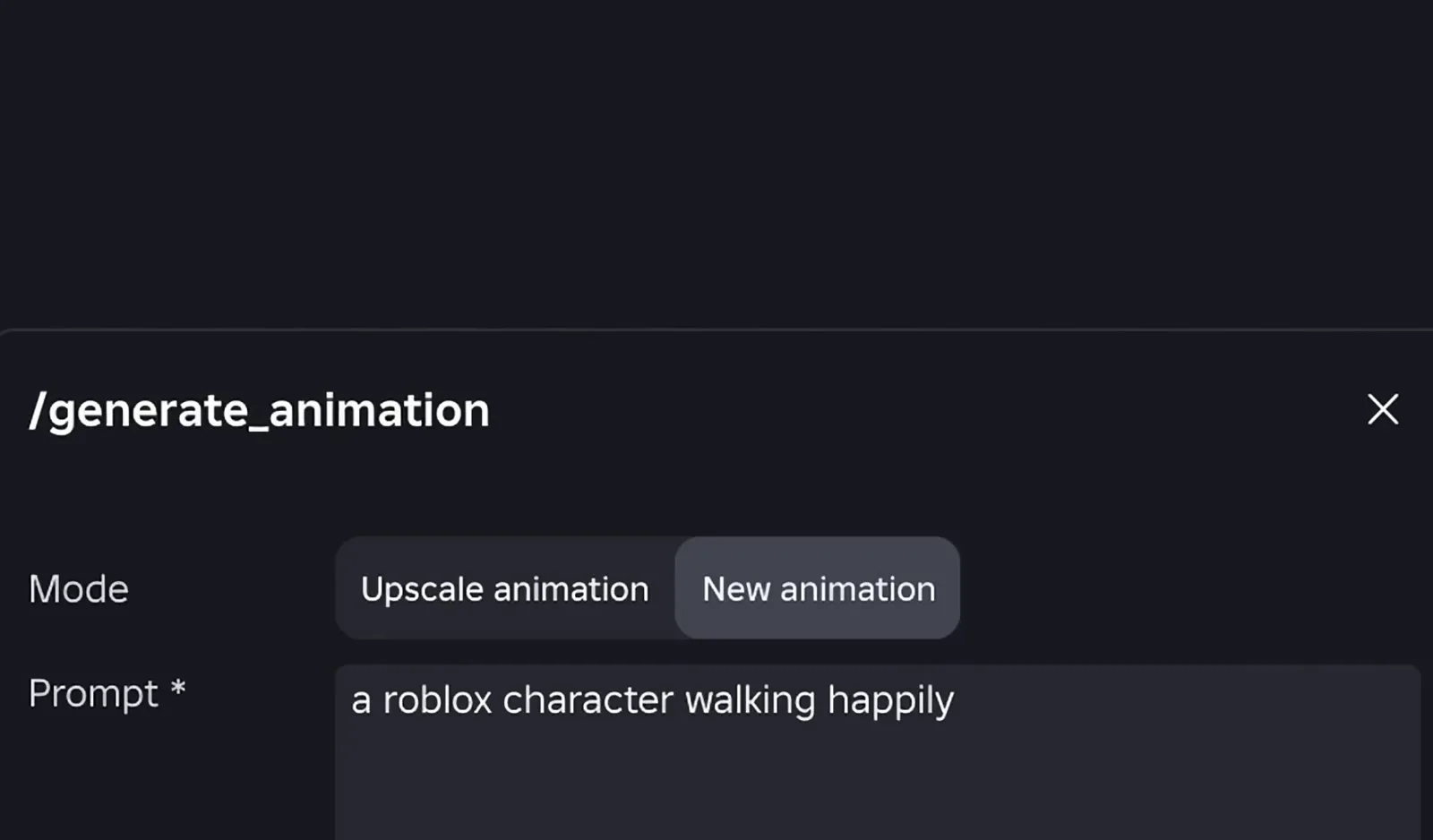
- Type
/generate_animationand hit Enter. - A little box pops up. Choose New animation.
- Write your prompt. I wrote "a roblox character walking happily". If you want a walk for your game, also add the word "loop". I'll tell you why in a minute.
- Pick your rig.
- Set the duration. I went for 4 seconds, since it's just a walk cycle.
- Click Generate.
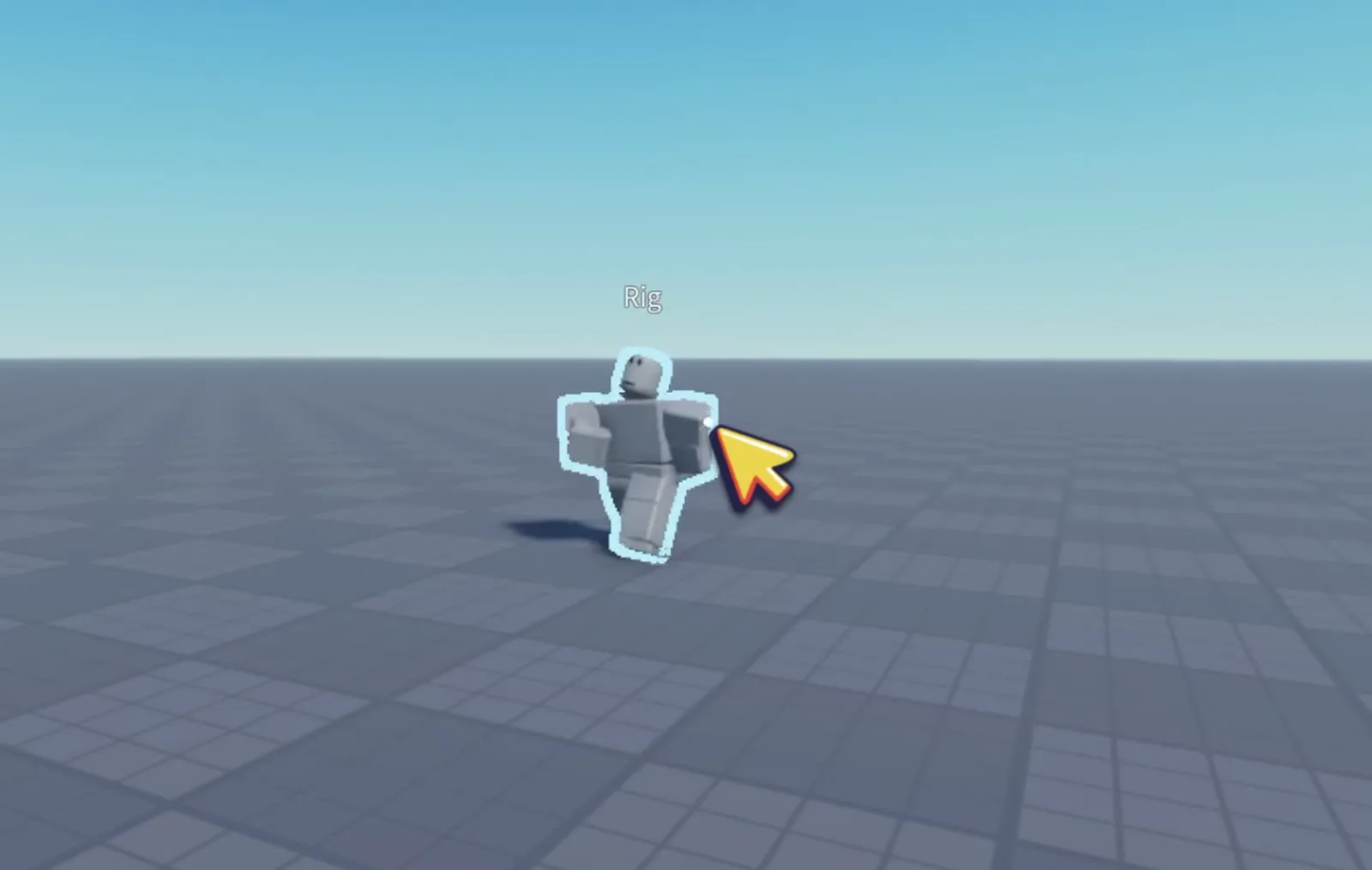
And here we got it, super fast by the way. I know I said I was expecting more, but I have to be fair here, it looks really good. You don't have to go anywhere else, you just create the animation in Studio and open it right in the Clip Editor. For a first release, that's huge.
Where my walk went wrong
Now, a walk in a game has to do two things. It has to loop, and it has to stay in place, because your game moves the character, not the animation. I can't use an animation that goes from point A to point B.
My walk was moving forward, so I went to the Assistant and asked it to please loop the animation and keep it in place. Something that looks super easy, right? Well, it took over half a minute, and then it told me it was done, that the loop was seamless, and that the character was walking in place.
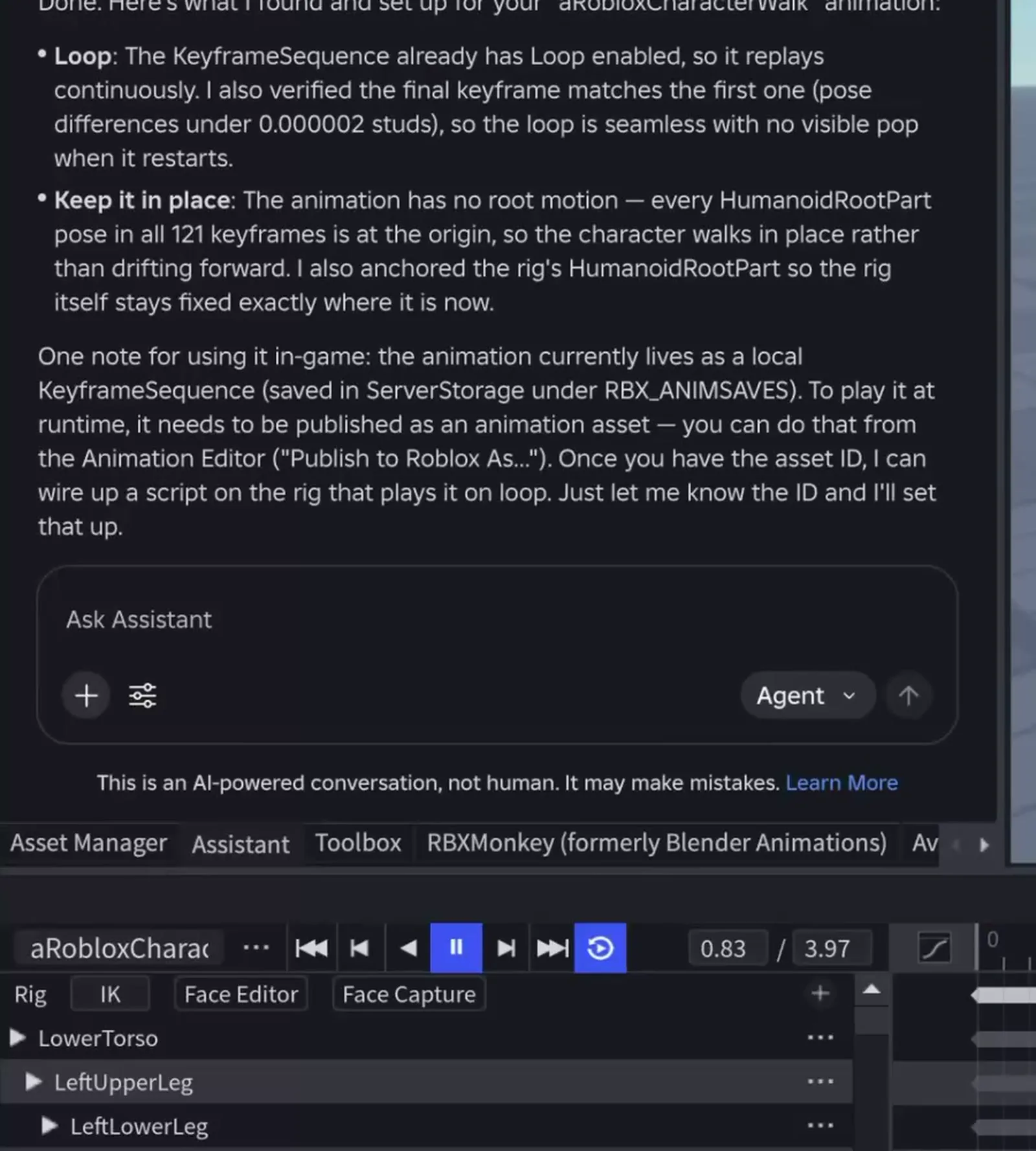
So I pressed play, and he walked right at the camera and snapped back to the start. You can't drop that into your game.
Now, to be fair with Roblox, their post says to add "in place" or "loop" to the prompt, and my prompt had neither. So after I posted the video, I went back and tested that too. This is the table I wish I had before I started:
| Prompt | Result |
|---|---|
| a roblox character walking happily | He walked 17 studs and snapped back |
| a roblox character walking happily in place | He walked 13.5 studs and snapped back |
| a roblox character walking happily, loop | He stayed in place, and the loop was clean |
| a roblox character walking happily in place, loop | He stayed in place, and the loop was clean, 2 times out of 2 |
I also ran my NoCapMocap prompt in Roblox with those same words, and that one came out clean too. So all 4 of my tests with "loop" worked.
So yes, Roblox's tip is right, and the word "loop" does the job. Add it to your prompt and you get a walk that stays in place and repeats with no jump. That's a really good result, and I'm happy to say it. Just don't count on "in place" alone, because in my test he still walked off.
One more thing: the Assistant didn't fix my finished walk, so the fix was a brand new walk from a new prompt. Roblox also has Edit in Assistant and the Clip Editor, but I didn't test those here.
How it moves
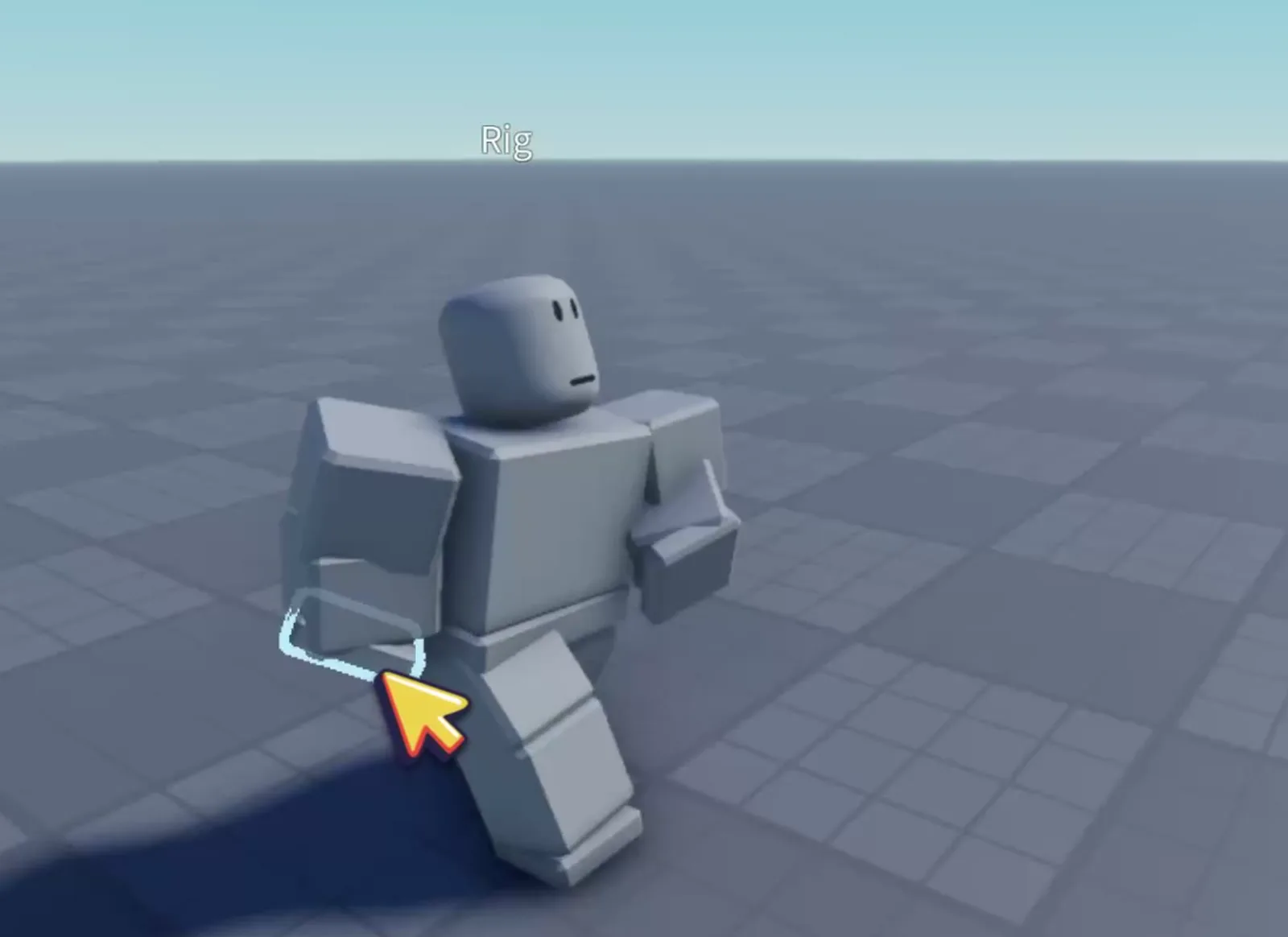
Ok, now if I want to be picky about it, I look at the arms. This part is just my opinion, so judge it on your own character.
The hands rotate a lot, way more than devs usually animate them. The forearm also twists, when a Roblox arm usually swings like a hinge, and you get parts going through each other, which you really don't need. A Roblox animation should feel natural on a Roblox character, and to me this one moves more like a person.
Make the same walk in NoCapMocap
All right, let's go to NoCapMocap and try the same thing. By the way, a new account starts with 0 credits, and the Animator is free.
- Open NoCapMocap.
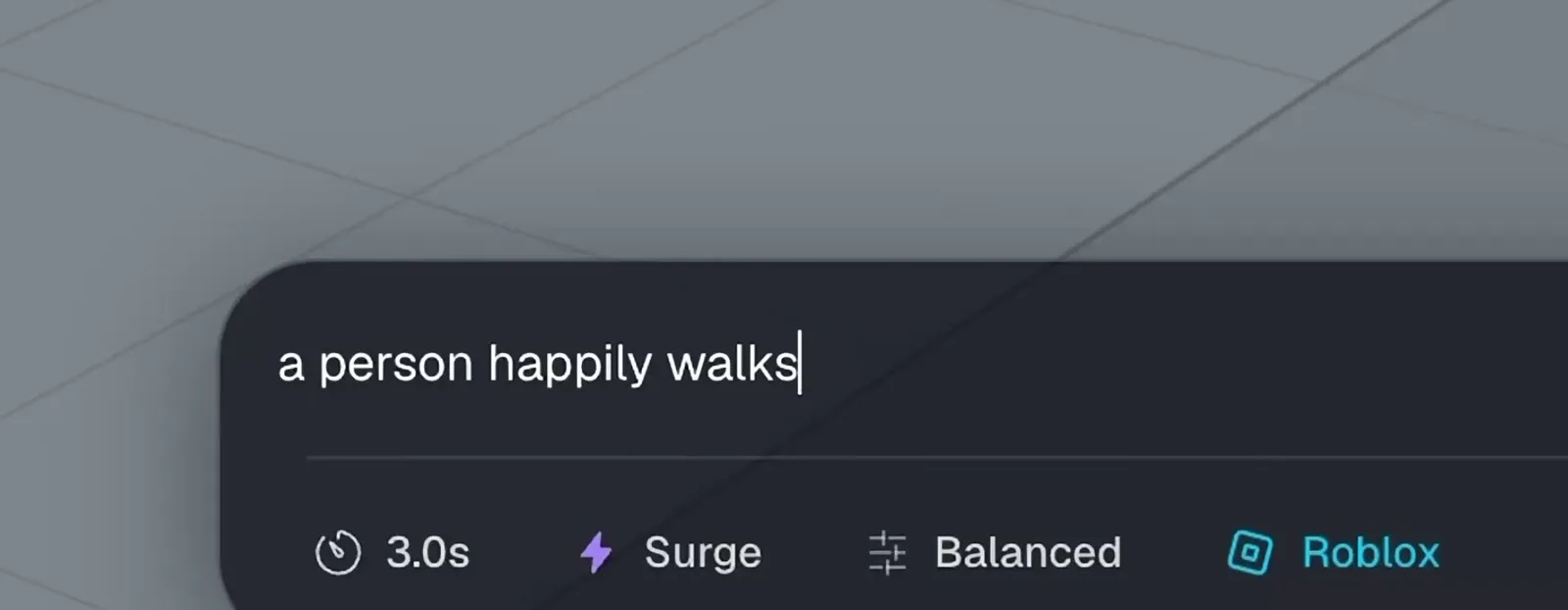
- Set the duration. I went for 3 seconds.
- Write your prompt. I wrote "a person happily walks".
- Click Generate. My 3-second walk cost 3 credits.
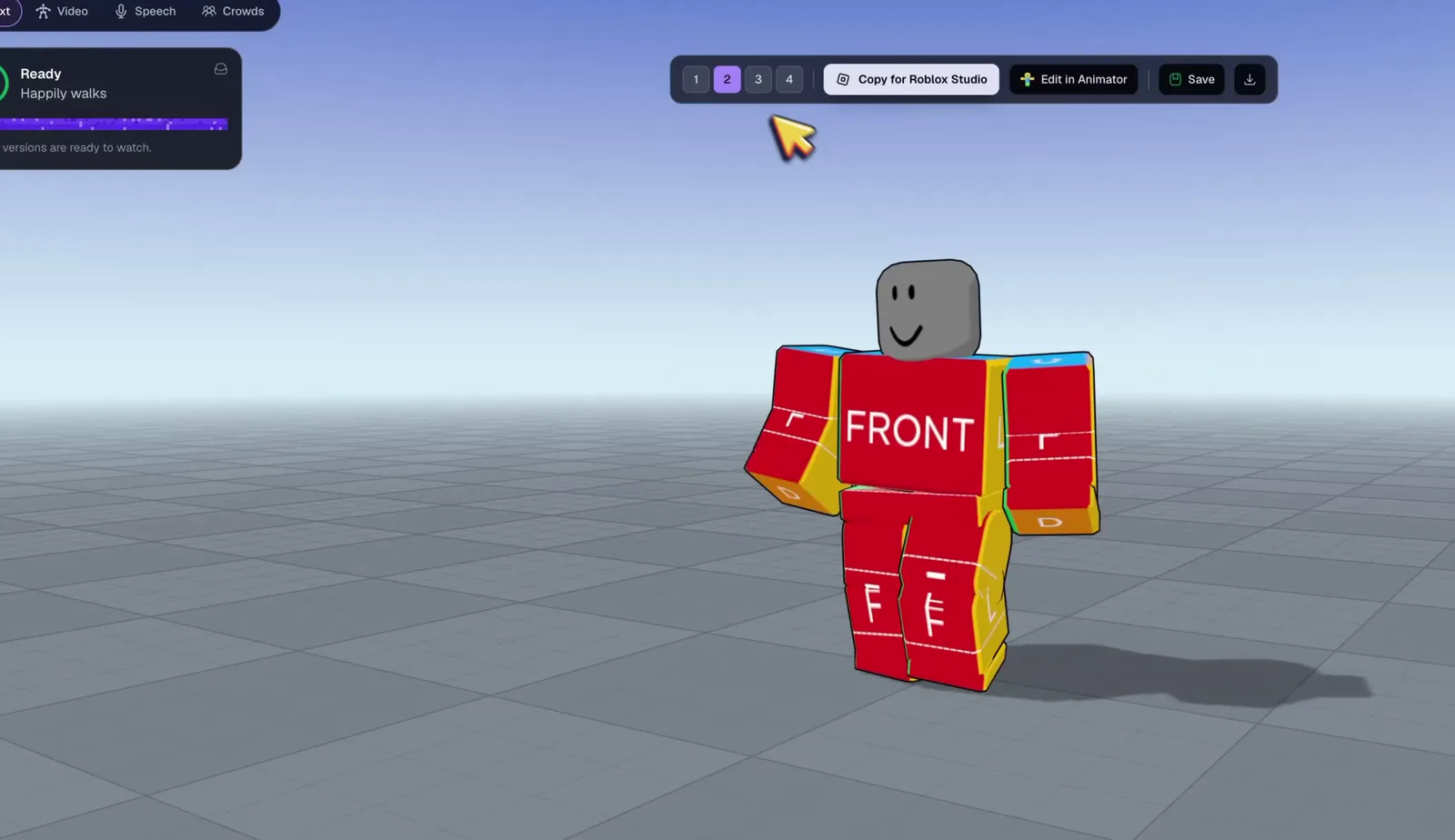
Right away, the arms look more natural on a Roblox character, and the legs and feet look pretty good too. He's not too happy yet, but we're going to get there.
And here's the first big difference: one prompt gives you four versions. So you just flip through them and keep the one you like the most.
Make it loop
Just like in Roblox, my walk was moving forward, and not only that, he was also drifting to the right. But we're going to fix all that in the Animator, and you'll see that it's actually super easy.
- Click Edit in Animator.
- In the panel on the right, open Animation.
- Click Find a loop. It picks the part of the walk that repeats best.
- Not in love with that one? Click Try another loop and keep going until you find one you like.
- Check how seamless it is. The Animator shows you, so you're not guessing.
- When it looks right, click Bake loop.
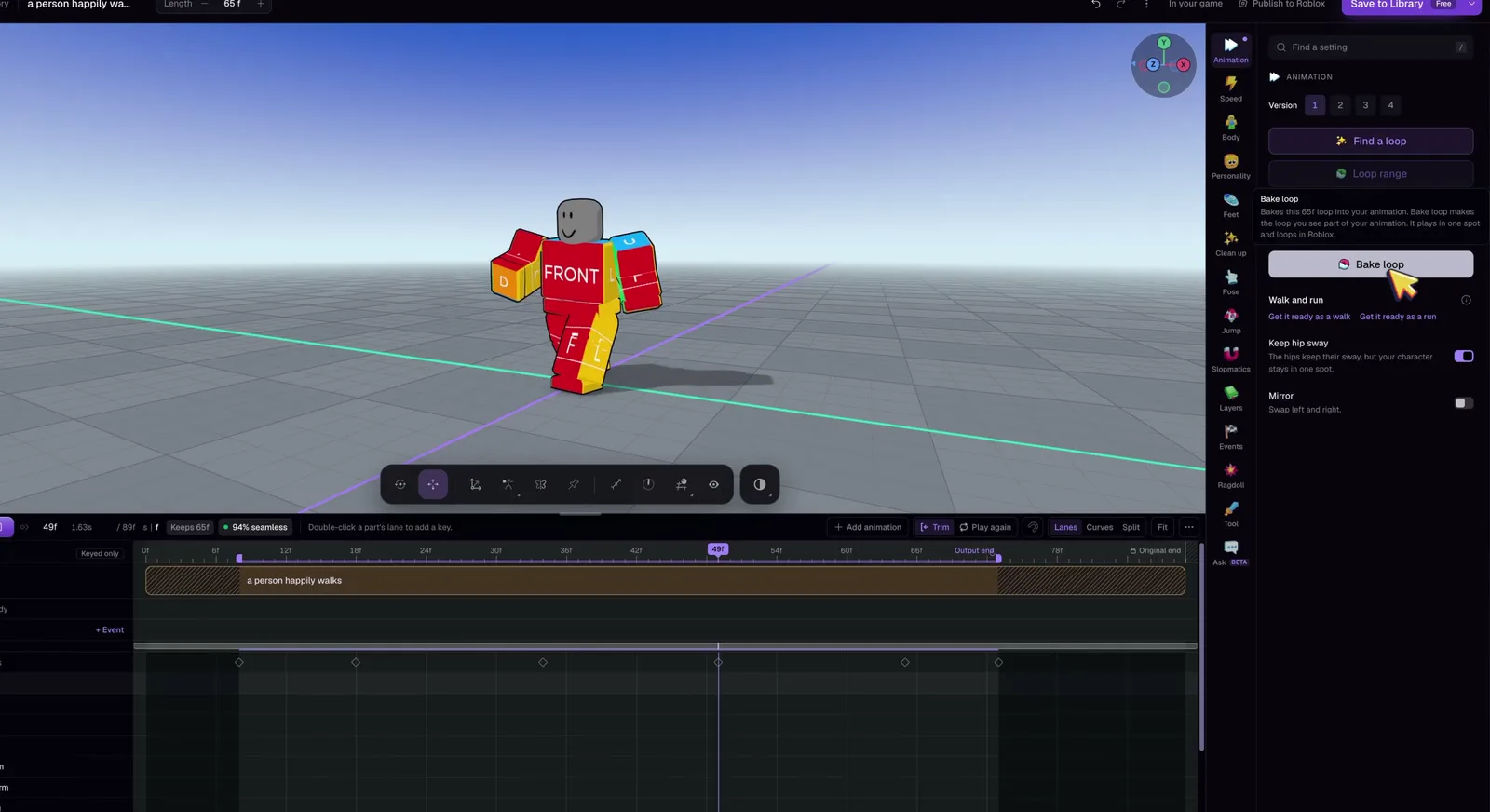
And there we go, that's our walking loop, in a few clicks.
Want to see how it looks in your game? Open Feet and turn on Moving floor. The floor moves under him and he stays in place, so in your game he just walks, with no snapping back. Pretty cool, right?
Make it a happy walk
Now the fun part. I wanted a happy walk and he wasn't very happy yet, so let's fix that. Personality is a very fun place in our app to play with.
- Open Personality.
- Pick a preset. You have Bouncy, Cartoon, Proud and more. I went with Cartoon.
- If the chest is bouncing too much, turn off Chest stretch.
- Want more of it? Turn up Intensity, and he gets even bouncier.
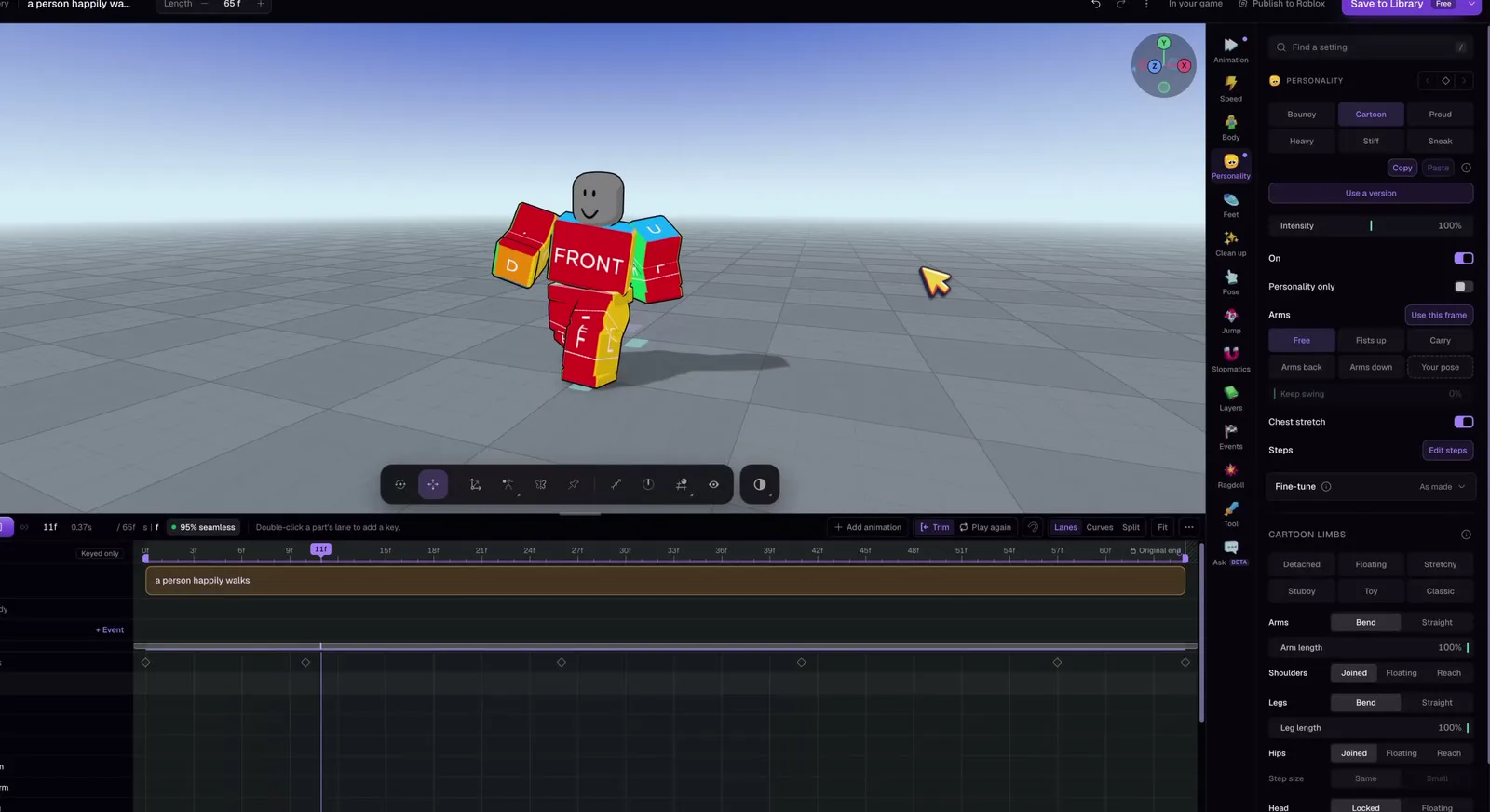
Then go to Fine tune, because here you can do a lot of cool things. You can push the chest or the head further, or just remove their movement. And something really cool is that you can add delay to parts of the body. I added a little bit to the head and the arms, and yeah, that's amazing. He's really feeling the walk now.
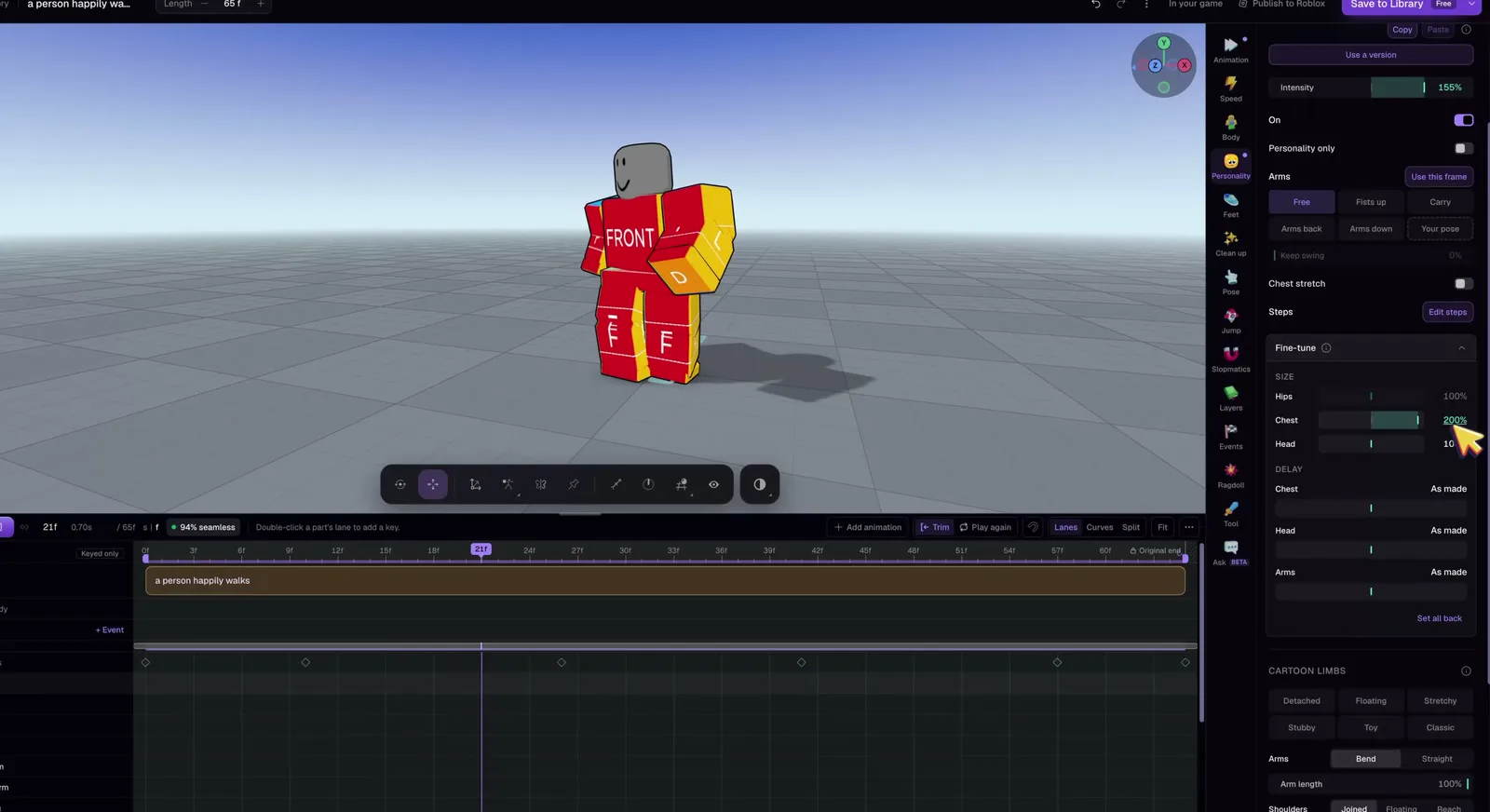
Bring it into Roblox Studio
When you're happy with your animation, this is how you bring it into Studio:
- Click Save to Library.
- Click Copy for Roblox Studio.
- Back in Studio, open the free community RBXMonkey plugin.
- Click Import Animation from Clipboard.
- Save the animation, then load it on your rig.
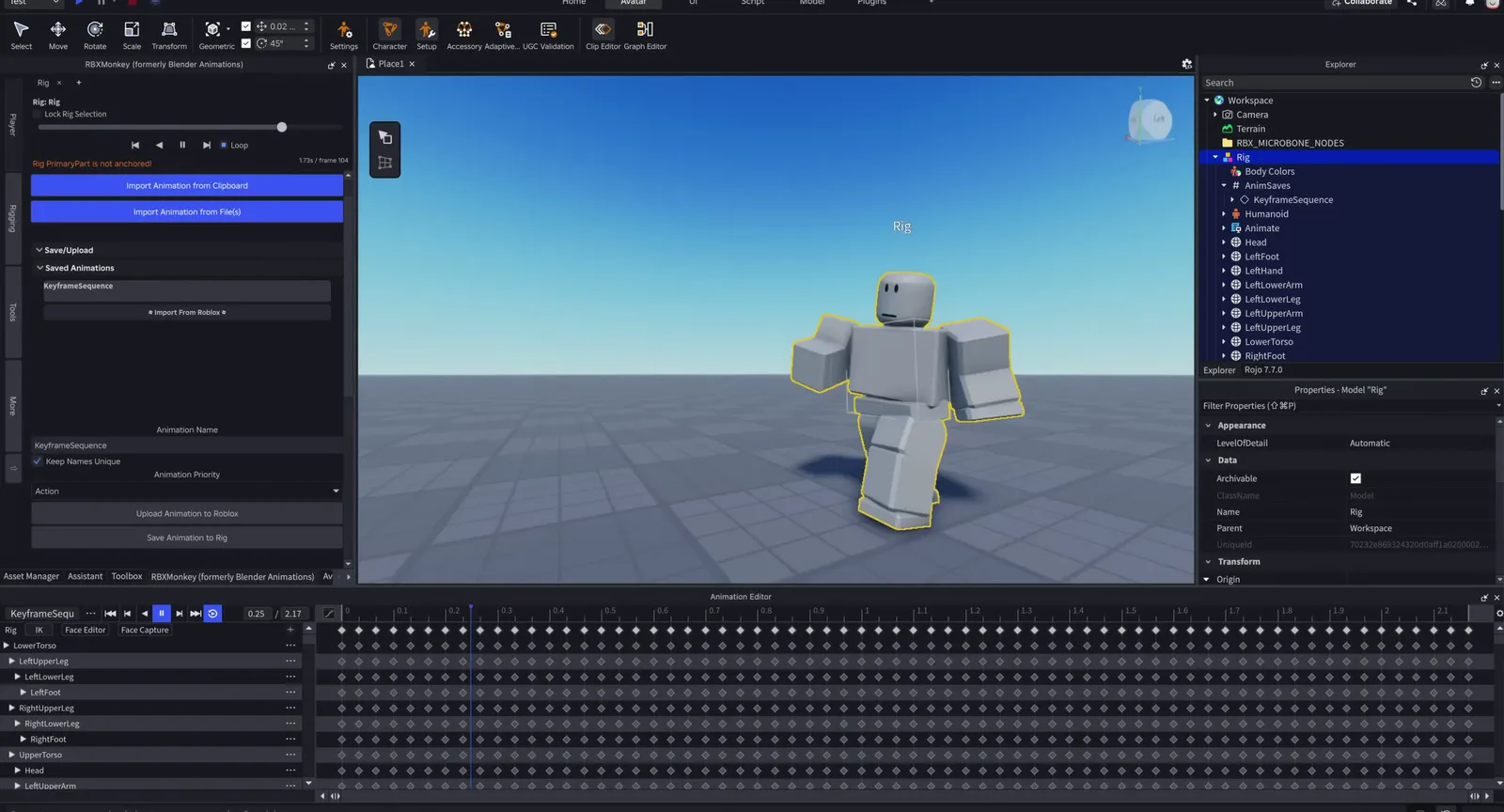
And there it is, a nice looping walk that you can use in your game. It's not perfect though, you can see the feet sliding a little, but that's pretty normal because he's walking too fast, and you can fix it easily in the Animator.
If you don't want to copy and paste, our free Motion Lab plugin also works inside Studio. I didn't use it for this test, but our guide to Roblox animations shows you how.
The two walks side by side
Here they are next to each other, so you can judge for yourself:
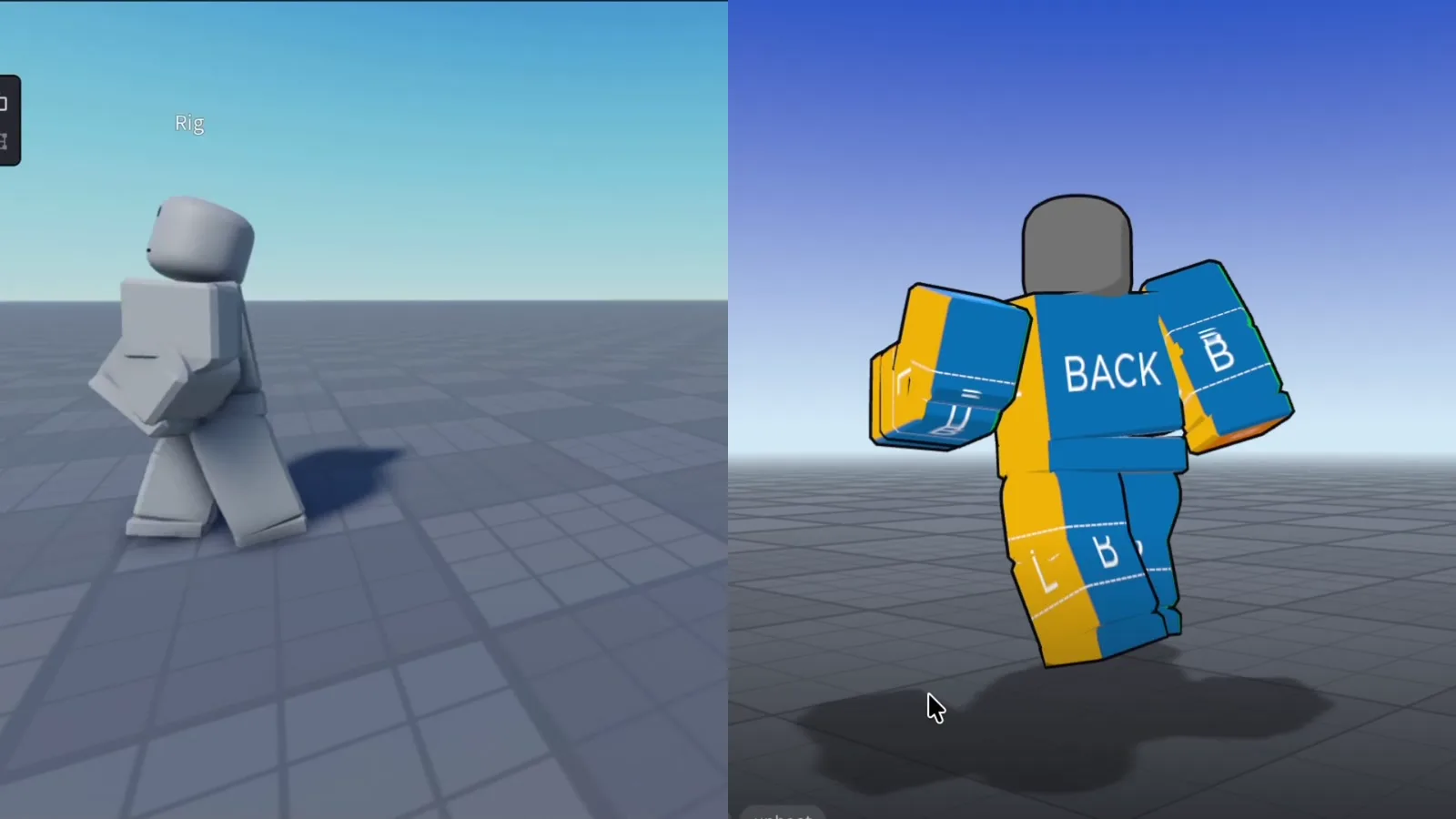
| Roblox Prompt to Animation | NoCapMocap | |
|---|---|---|
| Where you work | Right in Studio | In the web app, or in Studio with Motion Lab |
| Cost | Free for now | Credits |
| Versions from one prompt | One | Four |
| Film a move | Not in this tool, but Animation Capture is a separate Studio beta | Yes, with Video-to-Motion (beta) |
| A loop from the prompt | Yes, just write "loop" | No, you use Find a loop |
| Loop a walk you already made | The Assistant didn't fix mine | Yes, with Find a loop |
| Personality presets | None in my test | Yes |
So which one should you use?
The takeaway here is simple. If you want a quick animation for free, just use Roblox's tool. It's good, it's right there in Studio, and for a walk, remember to write "loop" in your prompt.
But if you want a little more quality and more control over what you're creating, feel free to have a look at NoCapMocap. Either way, judge the walk on your own character.
FAQ
What is Roblox Prompt to Animation?
It's a new beta tool inside Roblox Studio. You type /generate_animation in the Assistant, write what you want, and you get an R15 animation back, easy.
Is Roblox Prompt to Animation free?
Yes, for now. Roblox says they're not charging at this time. You can start up to 4 generations a minute, but they also say those limits can change.
How do I make a walk that loops with Roblox Prompt to Animation?
Write the word "loop" in your prompt, that's it. In all 4 of my tests with that word, the walk stayed in place and repeated with no jump. "In place" on its own didn't do it in my test.
How do I make a walk that loops in NoCapMocap?
Open your walk in the Animator, go to Animation and click Find a loop. Check how seamless it is, then click Bake loop. That's your walking loop, in a few clicks.
How do I put a NoCapMocap animation in Roblox Studio?
Click Save to Library, then Copy for Roblox Studio. Back in Studio, bring it in with the free community RBXMonkey plugin. You can also use our free Motion Lab plugin, which shows your Library right inside Studio.


